Introduction
Recently, I’ve found myself needing to read a large amount of academic literature. However, my limited technical vocabulary often gets in the way, and I don’t want to rely on tools that translate entire documents. So I began looking for a better solution. During my search, I came across a tool developed by Zhenyu Huang. It allows users to look up unfamiliar words quickly while creating context-rich Anki cards at the same time. This post explains how to install and use the tool.
Tools
- Chrome
- Anki PC Version
- Anki for Android (Download from APP store)
- Online Dictionary Helper
- Anki-connect
- PDF.js
- Anki Card Template
Installation
1. Installing Chrome and Anki (Windows/Android/iPhone)
For compatibility with AnkiConnect, I recommend installing Anki 2.0. You can download an older version from the official website or use the direct download link provided in this post.
2. Installing Online Dictionary Helper (Chrome Extension)
Open Google Chrome and go to the Extensions page by entering chrome://extensions in the address bar and pressing Enter. Make sure Developer mode is enabled in the upper-right corner.
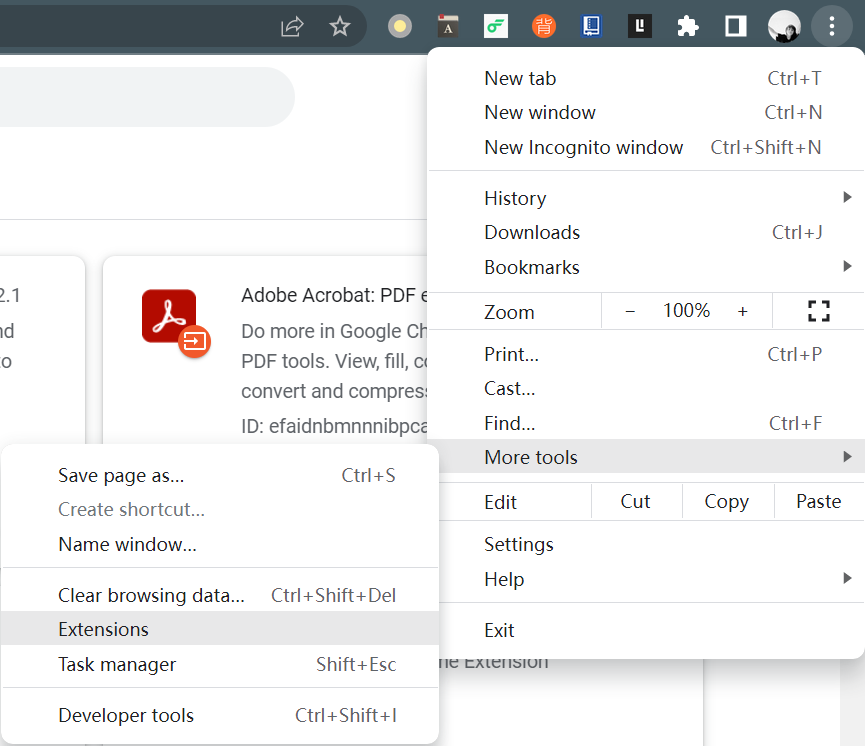

Drag and drop dic.crx onto the Extensions page to install Online Dictionary Helper.
3. Installing Anki Connect
Extract ankiconnect.zip, copy AnkiConnect.py into Anki’s add-ons folder, and then restart Anki.
4. Importing Anki Template
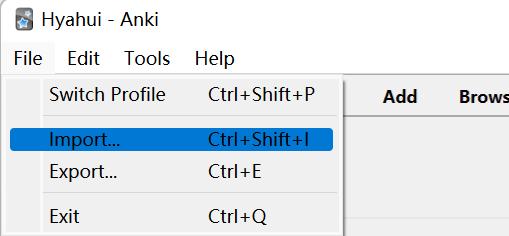
Open Anki, click the File menu, and then select Import. Choose anki.apkg to import the template.
AnkiWeb is a service that allows you to synchronize your collection across multiple devices and study online. I recommend creating a free account before continuing.
5. Configuration
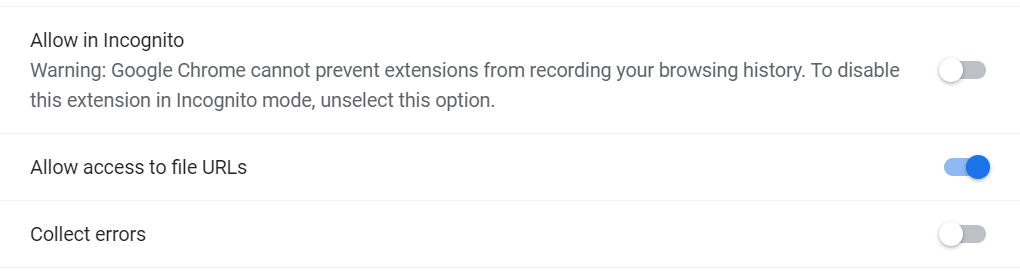
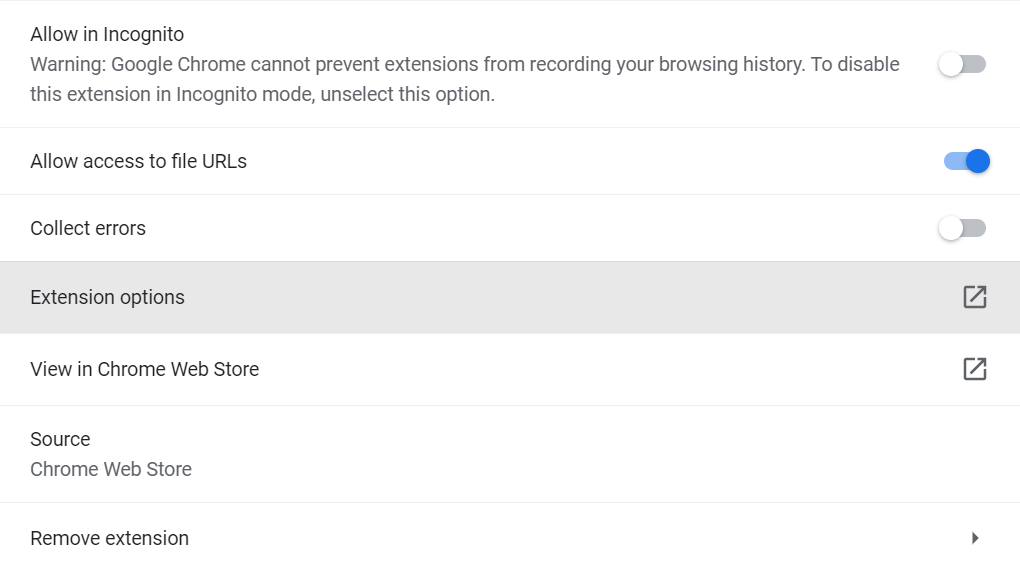
Open the details page for the Online Dictionary Helper extension and enable Allow access to file URLs.
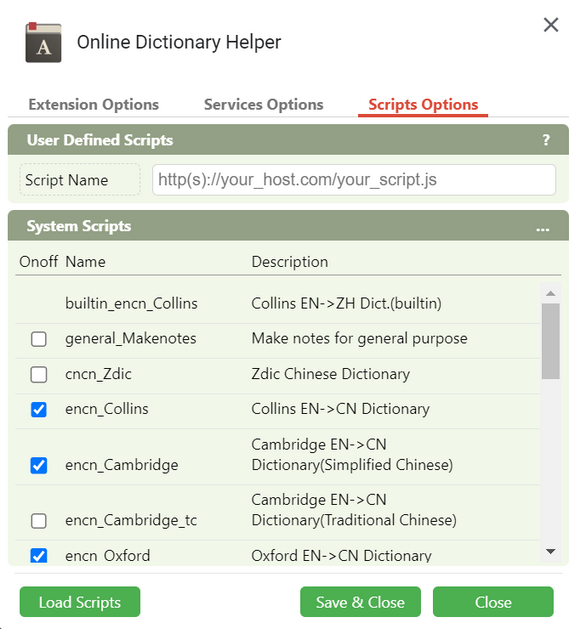
Open Anki and log in to your account. Then open the extension options for Online Dictionary Helper.
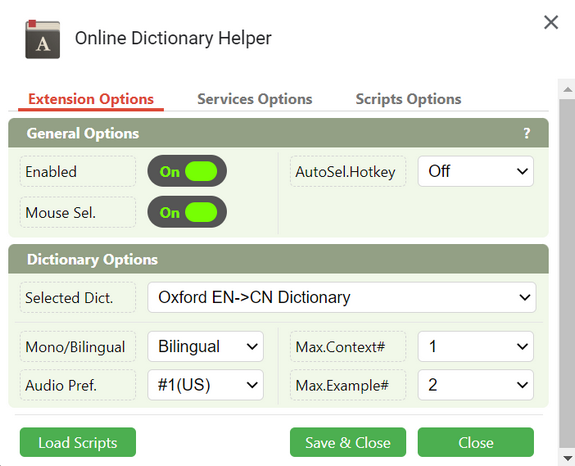
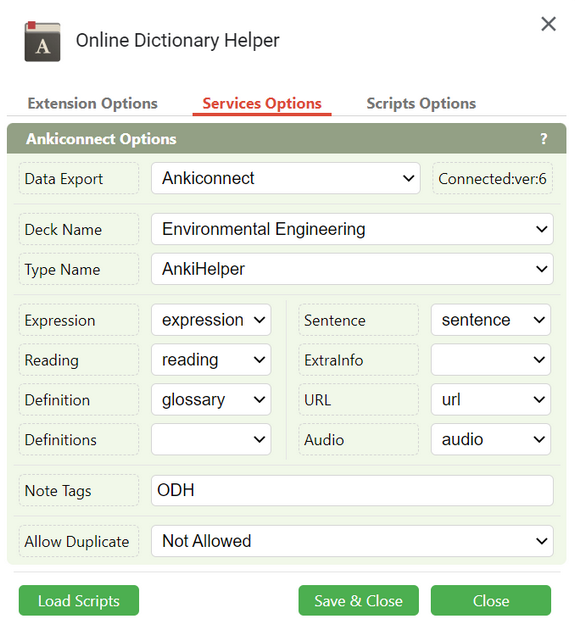
Under Service Options, select either AnkiConnect or AnkiWeb. You can also choose your preferred dictionary under Dictionary Options.
The screenshots below show my configuration. You can adjust the settings to suit your preferences.
6. Installing PDF.js
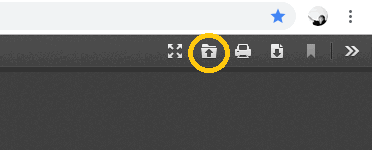
Extract pdfjs.zip. Open Google Chrome, enter /pdfjs-2.0.943-dist/web/viewer.html in the address bar, and press Enter. Then click the button shown in the image below.
7. Using ODH to look up words and making Anki card
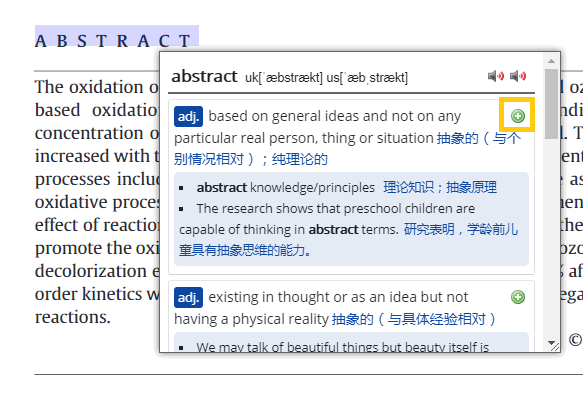
Enable the Online Dictionary Helper extension and open a PDF file in PDF.js. Move your cursor over the word you want to look up, or select it to view the translation. Click + to create an Anki card. After synchronizing your collection, you can review these cards across multiple devices. Click the blank area on the card to reveal the definition.
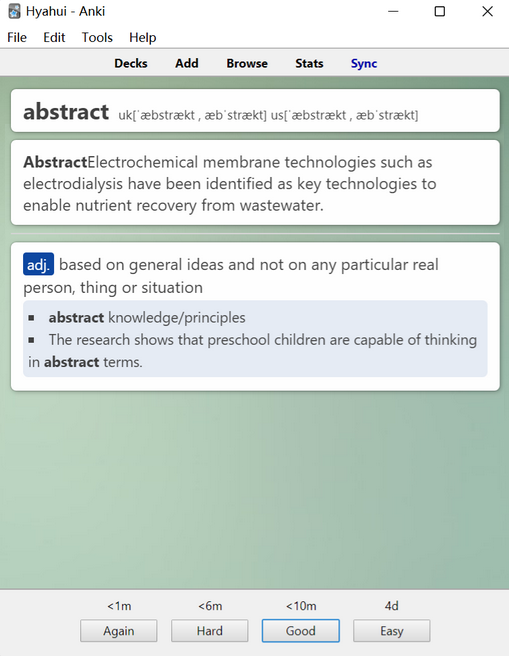
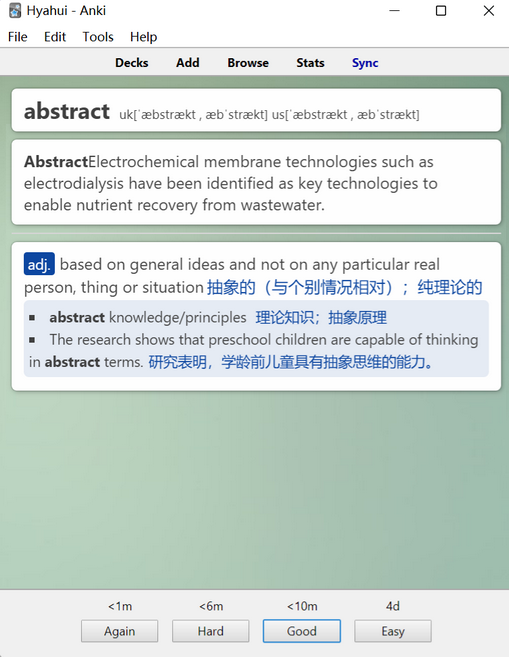
Anki is a powerful and highly customizable tool. Feel free to explore its other features.
2020-03-07 Updated
As of February 2020, versions of Anki for Windows earlier than 2.1 can no longer connect to AnkiWeb. This guide explains how to install AnkiConnect in Anki 2.1. If you are currently using Anki 2.0 and its corresponding version of AnkiConnect, you may encounter compatibility issues. For more detailed instructions, please refer to the official documentation.
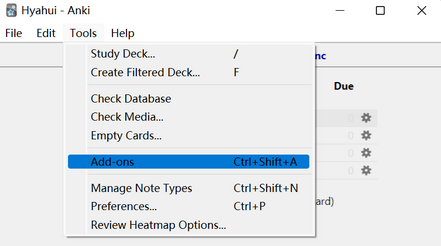
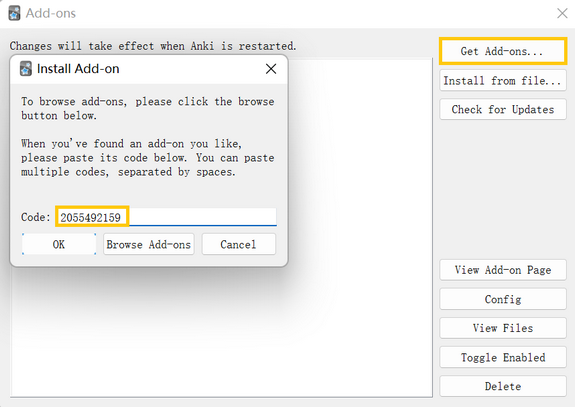
Open Anki, click Tools → Add-ons → Get Add-ons, and enter 2055492159 in the Code field. Click OK to install AnkiConnect. Restart Anki after the installation is complete.